Making Outbound Calls
To place an outbound call in Microsoft Teams, open the Teams application and select the Calls tab from the left-side navigation menu. Users can either manually dial a phone number using the dial pad or search for a contact using the search bar near the top of Teams.
For external calls, users should enter the full phone number including the area code. For internal university calls, users may search by employee name or extension number.
After entering the phone number or selecting a contact, select the Call button to begin the call.

Answering Incoming Calls
When receiving an incoming call in Teams, a call notification window will appear on the screen displaying the caller’s information along with options to answer or decline the call.
To answer the call, select the Answer button. To decline the call, select Decline. Depending on Teams Phone settings, users may also have the option to send the call directly to voice mail.
Once connected, Teams will display active call controls such as mute, hold, transfer, speaker settings, and hang-up options.
When someone calls you, you'll get a notification that lets you accept or decline the call.
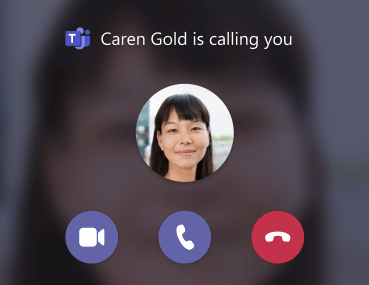
Link: Microsoft. Microsoft Support. (n.d.). https://support.microsoft.com/en-us/office/answer-a-call-in-microsoft-teams-780c6946-2061-4efc-82c3-336aabfc7da0
Ending a Call in Microsoft Teams
Once a phone call has been completed in Microsoft Teams, users can disconnect the call by selecting the red Hang Up button located within the active call window. This button typically appears at the bottom of the Teams call controls during an active conversation.
After selecting the hang-up button, the call will immediately disconnect and disappear from the active call screen. The completed call will then appear within the user’s recent call history inside the Calls tab.
